
Digital Accessibility Resources
Accessibility Starts With People
Digital accessibility helps everyone access the information, resources, and opportunities they need.
Whether you create a webpage, share a document, send an email, or post on social media, the choices you make can help remove barriers. Region 7 ESC has gathered practical guidance and trusted resources to help school districts get started.
Understanding ADA Title II
The Americans with Disabilities Act (ADA) Title II web and mobile accessibility rule requires covered state and local government entities, including public school districts, to make their web content and mobile apps conform to Web Content Accessibility Guidelines (WCAG) 2.1 Level AA, subject to the rule's provisions and limited exceptions.
Current Compliance Deadlines
- April 26, 2027: Public entities with a total population of 50,000 or more.
- April 26, 2028: Public entities with a total population below 50,000 and special district governments.
For school districts: A school district is not automatically classified as a special district government. The applicable population measure depends on the type of school district. Student enrollment alone does not determine the deadline. Review the Department of Justice's Title II fact sheet and school district deadline guidance to identify the correct deadline.
What Digital Content Is Included?
District accessibility planning should consider websites, online forms, digital documents, images, video, audio, mobile apps, and content made available through vendors. This may include family communications, student and parent portals, learning platforms, and online registration tools.
Are there exceptions? The rule includes limited exceptions for certain archived content, preexisting conventional electronic documents, and other specified content. Exceptions have conditions and do not remove broader ADA obligations to provide effective communication and equal access. See the DOJ explanation of the rule and exceptions.
Where Should Districts Start?
You do not have to be an accessibility expert to make a difference. Start with the content people use most often and build accessibility into your everyday work.
- Identify what you publish. Consider district websites, calendars, documents, forms, newsletters, videos, apps, and vendor-supported services.
- Assign responsibilities. Identify who creates content, who reviews it, and who coordinates accessibility questions or concerns.
- Prioritize barriers. Start with essential services and frequently used information, such as enrollment, transportation, meal information, and family communications.
- Improve how new content is created. Teach staff accessible practices so new barriers are not added while older issues are addressed.
- Test, fix, and revisit. Use automated tools and manual testing, document issues, and review content regularly.
For planning guidance, visit the DOJ's First Steps Toward Compliance resource.
Digital Accessibility Basics
These everyday practices make digital content easier to use for people with different abilities and assistive technologies.
Color and Contrast
Use sufficient contrast between the text and its background. WCAG AA generally requires at least 4.5:1 for normal text and 3:1 for large text. Important non-text interface elements also have contrast requirements. Do not communicate information using color alone.
Example: Workshop Availability
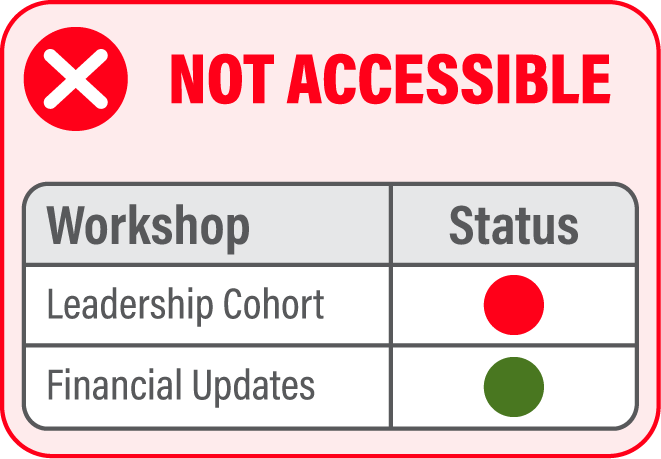
Avoid: Showing availability using only red and green circles.
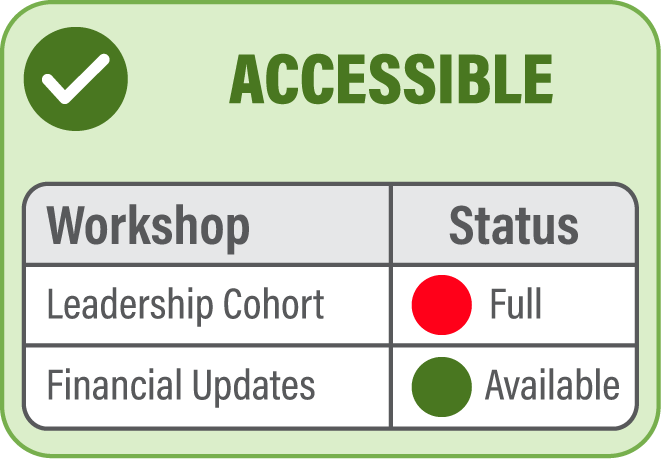
Better: Pair colors with text labels such as “Full” and “Available.”
Check colors with the WebAIM Contrast Checker.
Links and QR Codes
Use link text that describes the destination or action. In paragraphs, make the linked words meaningful in context. For standalone links or buttons, make the purpose clear without relying on surrounding text. Avoid vague labels such as “Click here” or “Read more” when they do not identify the destination.
Avoid: “Click here.” Better: “Register for the Accessibility Workshop.”
A QR code should never be the only way to reach important information. Include a readable URL or another accessible route to the same destination. When sharing digitally, make the destination a clickable text link as well.
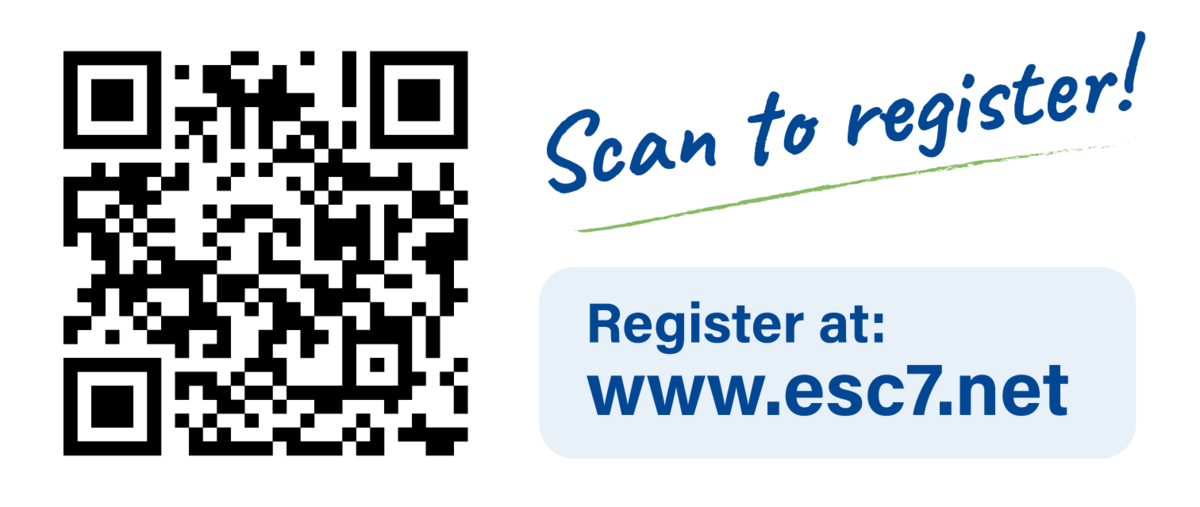
Better: Provide the destination in text alongside the QR code.
Images and Alt Text
Provide concise, meaningful alternative text for images that convey information. Describe the image's purpose in context. Decorative images should be marked decorative or given empty alt text when appropriate. Essential dates, locations, deadlines, and instructions should appear as actual text, not only in a graphic.
Example: Meaningful Alt Text
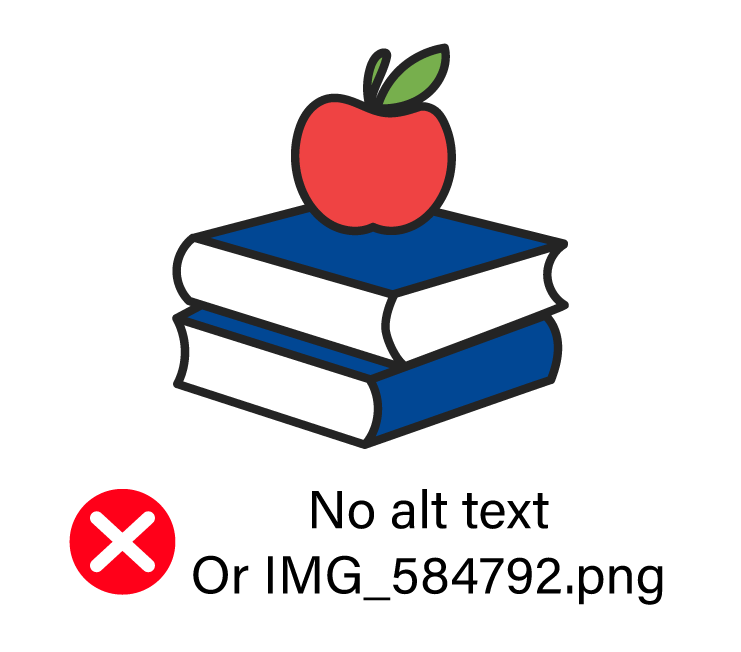
Avoid: Missing alt text or a filename such as “IMG_584792.png.”
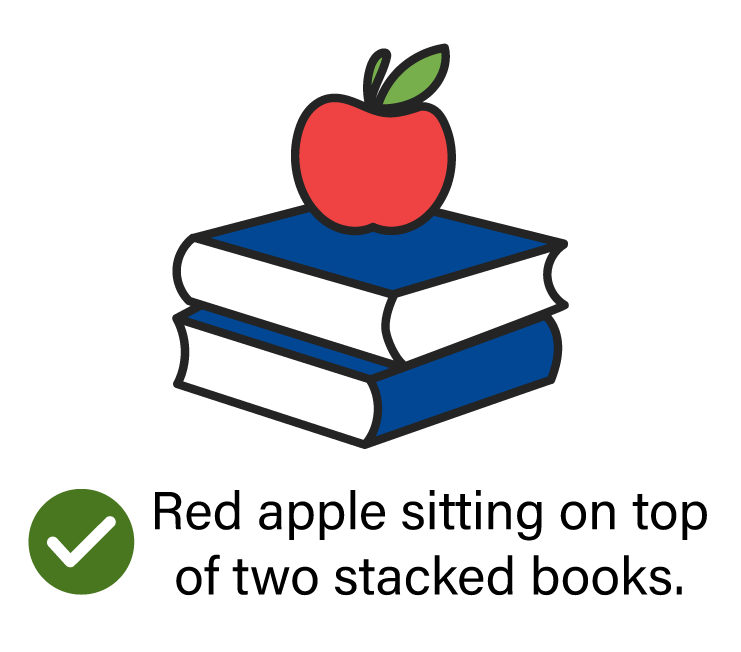
Better: For an image where the objects matter, “Red apple sitting on top of two stacked books.”
Headings, Tables, and Lists
- Use the editor's built-in heading styles in a logical order; do not create headings by enlarging or bolding plain text.
- Use real table markup for data, with appropriate row or column headers. Avoid screenshots of tables and avoid tables used only for visual page layout.
- Use built-in bulleted and numbered list tools instead of manually typing symbols or numbers.
Example: Lists
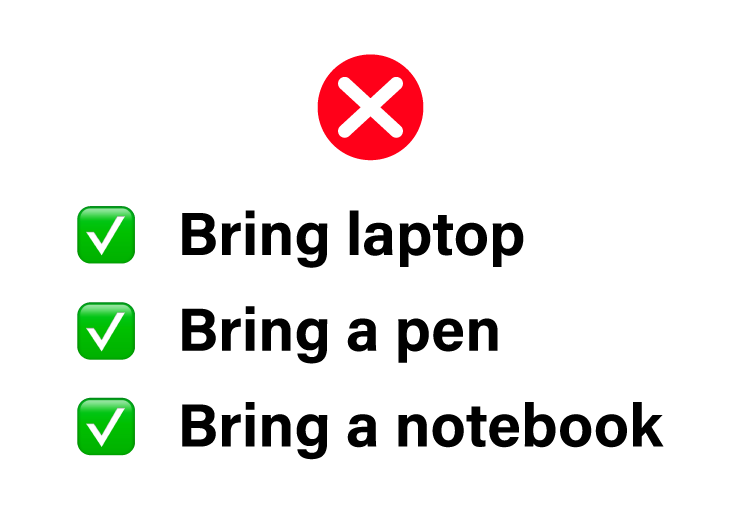
Avoid: Typed symbols that only look like list markers.
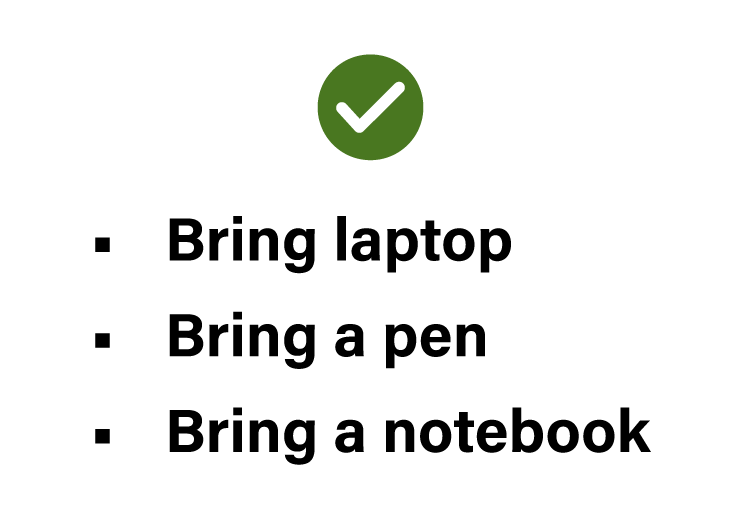
Better: Use the built-in list tool so assistive technology can identify the list structure.
Clear Instructions and Readability
Write instructions that make sense without depending only on color, shape, sound, or location. Use plain language, readable fonts, and clear spacing. Avoid excessive all caps, decorative fonts for body text, and text over busy backgrounds.
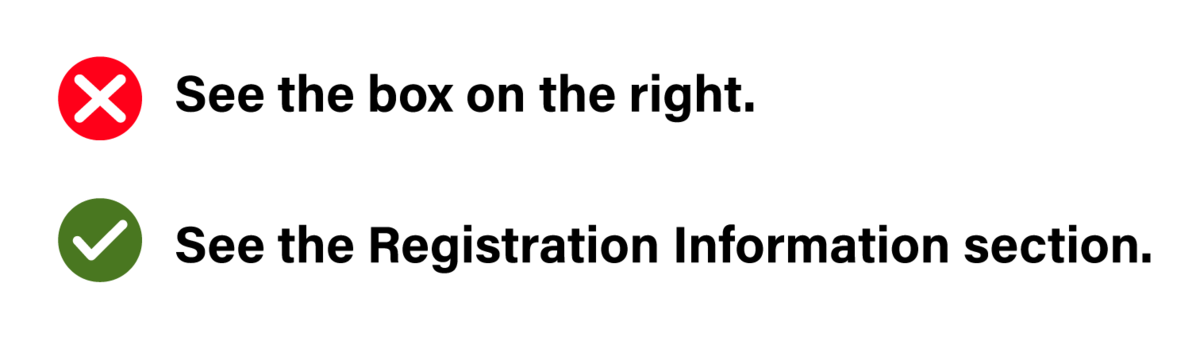
Avoid: “See the box on the right.” Better: “See the Registration Information section.”
Motion, Video, and Audio
- Provide controls to pause, stop, or hide moving content when required. Avoid unnecessary animation and flashing effects.
- Provide accurate captions for prerecorded video with speech and other important audio.
- Provide transcripts for audio-only recordings and audio description or an equivalent accessible alternative for important visual information in video, as applicable.
- Review automatically generated captions before publishing.
Creating Accessible Digital Content
Documents and PDFs
Use built-in headings and lists, meaningful links, alt text, accessible tables, and logical reading order in the original document. Check accessibility before sharing or exporting. A scanned or image-only PDF is not an accessible substitute for a properly structured document. When appropriate, publish short information as accessible webpage text instead.
Presentations
Give slides descriptive titles, use readable text and strong contrast, check reading order, describe meaningful visuals, and ensure charts and tables communicate their information accessibly. Include written destinations with QR codes.
Websites, Forms, and Apps
Use properly structured headings and controls, descriptive links, keyboard-accessible navigation, visible keyboard focus, clearly labeled form fields, and understandable error messages. Check that the content works at high zoom and on small screens. Remember to review district services delivered through third-party platforms.
Email and Social Media
Keep essential information in readable text rather than only in flyers or images. Use descriptive links, meaningful alt text, sufficient contrast, and accessible formatting. For social media, add captions to videos and put key event details in the post text, even when they also appear in a graphic.
Microsoft, Google, Canva, and Adobe Tools
Use each application's accessibility features when creating content, and review the result before publishing. The same principles apply across tools: meaningful structure, accessible images, readable colors, clear links, and logical reading order. For detailed steps, use the software provider's current accessibility guidance linked below.
Accessibility Testing and Tools
Automated tools can identify many issues, but they cannot determine whether every image description is meaningful, whether instructions make sense, or whether a task is usable with assistive technology. Combine automated checks with manual review.
- WebAIM Contrast Checker: Check text and background color combinations.
- WAVE Web Accessibility Evaluation Tool: Identify potential accessibility errors and issues on webpages.
- W3C Evaluating Web Accessibility: Learn about evaluation methods and tools.
Quick Manual Checks
- Keyboard: Use Tab, Shift+Tab, Enter, and Space to navigate and activate controls. Check for visible focus and keyboard traps.
- Zoom and reflow: Check text resizing and narrow-screen layouts for missing information, overlap, or unnecessary horizontal scrolling.
- Screen reader: Check the page's headings, link names, image descriptions, and reading order with assistive technology.
- Content review: Confirm instructions, captions, alternative text, form errors, and visual examples make sense.
Before You Publish: Accessibility Checklist
Use these questions as a quick content-creation check. This checklist is a starting point, not a substitute for a full WCAG 2.1 AA evaluation.
- Are headings, lists, and tables created with proper structure?
- Is all essential information available as actual text?
- Do meaningful images have appropriate alt text?
- Do text and important interface elements have sufficient contrast?
- Do links and buttons clearly describe their purpose?
- Are QR code destinations available in another way?
- Are videos captioned, and other media alternatives provided when needed?
- Can people use interactive content with a keyboard?
- Does the content remain readable when enlarged or viewed on mobile?
- Have automated findings and manual accessibility concerns been reviewed?
Additional Resources
Requirements and Accessibility Guidance
- U.S. Department of Justice: ADA Title II Web and Mobile Accessibility Fact Sheet
- U.S. Department of Justice: First Steps Toward Compliance
- W3C: WCAG 2.1 Quick Reference
- W3C: Web Accessibility Tutorials
Software Accessibility Guidance
- Microsoft Accessibility Support
- Google Docs Editors Accessibility Help
- Canva Accessibility
- Adobe Acrobat: Create and Verify PDF Accessibility
Resources reviewed October 2026. External websites and guidance may change; refer to the source for the most current information.
Need Help With Digital Accessibility?
Have questions about digital accessibility or need guidance on making your content more accessible? The Region 7 ESC Digital Accessibility Team is here to help.
Whether you're just getting started or working through a specific accessibility challenge, reach out for guidance and help finding the resources you need.

