DISCLAIMER: This information is provided as a courtesy from Region 7 ESC. We highly recommend that you check with your district's legal department for final details.
Accessibility in school communications isn’t optional; it’s essential. Every parent, student, and community member should be able to connect with the information your district shares. With the new federal Americans with Disabilities Act (ADA) web accessibility guidelines taking effect, there’s added urgency. Compliance deadlines begin in April 2026 for larger districts and April 2027 for smaller ones.
Accessibility in school communications isn’t optional; it’s essential. Every parent, student, and community member should be able to connect with the information your district shares. With the new federal Americans with Disabilities Act (ADA) web accessibility guidelines taking effect, there’s added urgency. Compliance deadlines begin in April 2026 for larger districts and April 2027 for smaller ones.
To make the rules easier to understand, we’ve pulled together answers to the most common questions districts in Region 7 are asking.
What are the new web accessibility rules schools need to follow?
The U.S. Department of Justice (DOJ) updated ADA Title II regulations, requiring schools to follow the WCAG 2.1 AA standards. These guidelines cover things like:
- Color contrast between text and background
- Alternative (alt) text for images
- Captions and transcripts for videos
- Clear navigation and readable fonts
Districts with populations over 50,000 must comply by April 2026. Smaller districts have until April 2027.
What types of digital content must be accessible?
Accessibility applies to nearly everything your district shares online, including:
- Websites and webpages
- Images and graphics
- Social media posts
- Videos and livestreams
- Audio-only or visual-only content
- Online exams, quizzes, and forms
- Online documents (PDFs, slides, docs, etc.)
- Online payment systems, registration forms, and employment applications
- Learning management systems (Google Classroom, Canvas, etc.)
- Mobile or instructional apps
- Email campaigns and newsletters
- Online photo albums
- Digital signage
- Third-party vendor platforms, even if the district didn’t build them
- Any other public-facing online communication
This is not an exhaustive list, but a good place to start.
Are there any exceptions?
Yes. Five main exceptions include:
- Archived web content that is no longer updated
- Pre-existing conventional electronic documents (such as older PDFs)
- Content posted by a third-party not under district control (i.e. message board where content is posted by a parent, etc.)
- Individual documents that are password-protected
- Pre-existing social media posts
- Ask your lawyer about the 'Safe Harbor' clause (for very specific instances)
Even with exceptions, it’s best practice to make new and frequently used materials accessible moving forward.
What about archived or older content?
Archived content does not need to be made accessible only if all four of the following conditions are met:
- The content was created before April 24, 2026, or is a reproduction of physical media created before that date
- The content is kept only for reference, research, or recordkeeping
- The content has not been altered or updated after being archived
- The content is stored in a clearly identified, dedicated archive area
If any one of these conditions is not met, the content must meet WCAG 2.1 Level AA.
For clarification:
- “Old” content is not automatically considered archived
- Content still used in a current service, program, or activity must be accessible, regardless of age
- Public-facing content must be accessible, no matter how old it is
- Content stored outside a dedicated archive area must be accessible
- Even exempt archived content must be remediated if an individual requests access
What makes digital content “accessible”?
Accessible content means everyone can use it, including people with visual, hearing, or cognitive disabilities.
Examples of accessible practices:
- Writing alt text so screen readers can describe images
- Adding captions and transcripts to videos
- Users must be able to navigate without a mouse, especially relevant for menus, forms, and calendars
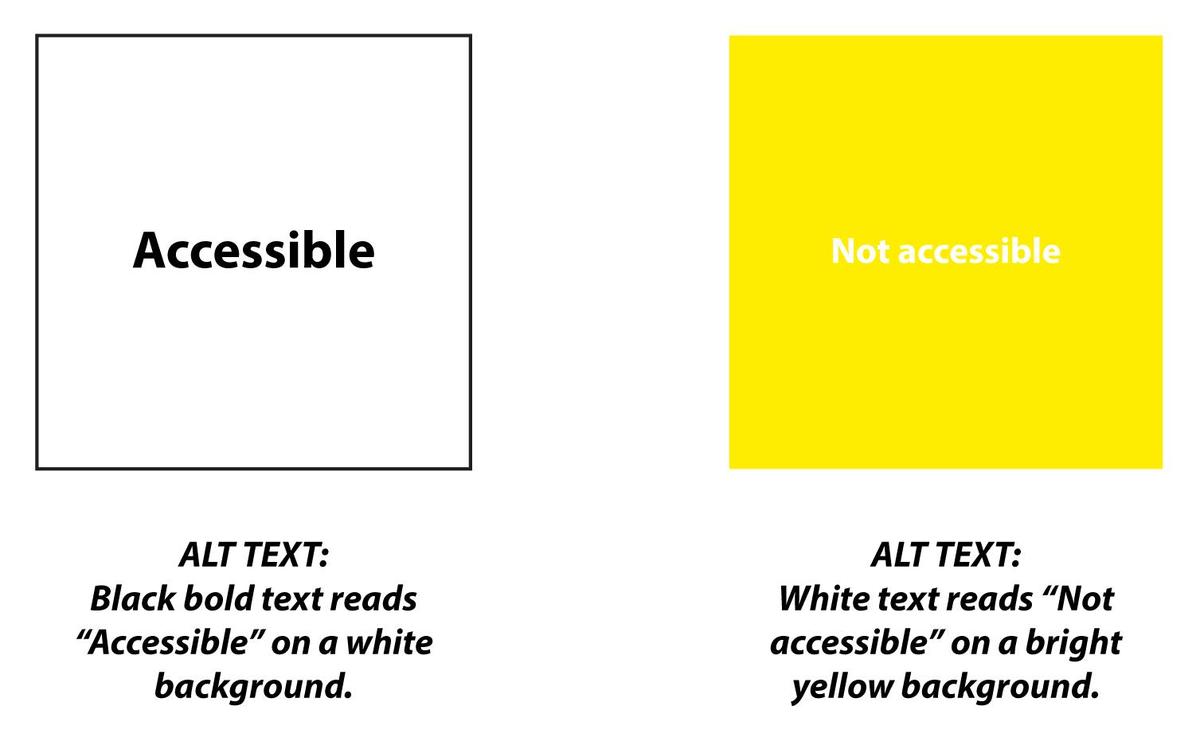
- Using legible fonts and adequate color contrast
- Keeping language plain, clear, and concise
What does good alt text look like?
Alt text should be brief, descriptive, and specific. It tells someone who can’t see the image what’s important about it.

Good alt text: Students seated together during a classroom group activity
Avoid vague descriptions like “students in classroom.” Instead, describe what’s happening and what matters most in context.
What should districts know about accessible videos?
Auto-generated captions, such as those generated by YouTube, are a helpful starting point, but they must be reviewed and corrected to ensure accuracy.
Tips for creating accessible videos:
- Use your script to generate captions.
- Edit automatic captions for accuracy. WCAG requires captions to be accurate and complete.
- Make sure all spoken, sung, or narrated words are captured.
- Build descriptions into your narration when possible.
- Identify who is speaking if multiple voices are present.
- For short-term content like stories or reels, add a text summary if captions aren’t available.
What about social media content?
Accessibility extends beyond your website; your social posts count too.
Tips for accessible social media:
- Always add alt text to images, especially those with words.
- Include a visible image description for users with low vision or cognitive differences.
- Avoid flashing, blinking, or fast-moving content.
- Post videos with captions only.
- Put hashtags, mentions, links, and emojis at the end of your caption.
- Use #PascalCase for hashtags (#GoBearBand, not #gobearband).
What about third-party content and instructional platforms?
Tips for accessible social media:
- Districts are still responsible for accessibility
- This includes curriculum platforms, eBooks, testing systems, and classroom apps
- Accessibility should be considered during purchasing and renewal
What about PDFs, slides, and downloadable documents?
If it’s online, it must be readable.
Before posting:
- Run built-in accessibility checkers in Word, PowerPoint, or Acrobat.
- Fix heading structure, reading order, alt text, and contrast.
- Use real text, not “scanned text as an image.”
- Properly tag PDFs before uploading.
- If a PDF is complex (like a fillable form), also post a webpage version or accessible HTML alternative.
What about digital signage and in-building screens?
Digital screens count as public information.
Tips for accessible signage:
- Use large, high-contrast text with one or two key messages per slide.
- Provide other ways to access the same info (website, printed notice, or email).
- Avoid fast motion and flashing images.
- Give viewers enough time to read the content once before it changes.
What happens if schools don’t meet the requirements?
Not meeting the standards comes with risks:
- Families may miss important updates.
- Students may struggle to access assignments and resources.
- The district may face legal or compliance issues.
- Possible civil rights complaints.
- Required corrective action plans.
In short, accessibility protects your community and your district.
How can schools start preparing now?
Start small and be consistent:
- Always write alt text when you upload an image.
- Always add captions to videos.
- Use large, legible fonts.
- Avoid posting flyers only as graphics; include text alongside them.
- Use accessibility checkers regularly.
- Remember: less is more. While Canva is great for creativity, it doesn’t always meet accessibility standards.
- While not a specific WCAG 2.1 requirement, informing users when a link opens in a new tab supports accessibility and usability for all users.
Once these habits stick, accessibility becomes second nature. Keep our ADA checklist handy for quick reference.
Prioritize high-impact content first:
- Enrollment and registration forms
- Essential for student and family access
- Ensure form fields have labels, clear error messages, and keyboard navigation
- Instructional PDFs and documents
- Frequently used by students and staff
- Convert to accessible formats or properly OCR-scanned documents
- Videos and multimedia
- Critical for instruction and communication
- Provide accurate captions and transcripts
- Homepage and navigation menus
- Primary entry point for all users
- Ensure keyboard access, proper heading structure and alt text for graphics, and sufficient color contrast
- Mobile apps used for communication or instruction
- Increasingly relied upon by families and students
- Test with screen readers and address usability issues
How can districts build accessibility into everyday workflows?
Think of accessibility as part of your communication plan, not a separate task.
Suggestions:
- Ensure vendors and software providers support accessibility.
- Work with leadership to create a Digital Access Action Plan.
- Use AI tools to help generate descriptive text.
- Avoid “click here” links, make link text descriptive.
- Check color contrast before posting graphics.
Who in the district needs to know about this?
Anyone who posts content online:
- Superintendents and communications staff
- IT directors and administrators
- Administrative assistants
- Teachers and staff with campus or classroom pages
Accessibility isn’t just compliance; it’s part of digital citizenship.
How does this connect to required website postings?
On top of ADA accessibility, Texas law already requires schools to post dozens of items online, from campus report cards to Title IX information. TASB Legal Services provides a helpful reference on Required Internet Website Postings (December 2024).
It doesn’t replace legal advice but is a practical tool to help districts keep track of postings and deadlines.
What support does Region 7 ESC provide?
While Region 7 ESC doesn’t operate a dedicated accessibility program, our Marketing and Special Education teams can help by:
- Answering questions about accessibility and required website postings.
- Sign up for Region 7 Marketing Updates to receive tools and strategies we’re using internally to prepare for the 2026-2027 deadlines.
Where can I learn more?
Helpful resources include:
- ADA.gov – official DOJ regulations and timelines
- W3C WCAG Quick Reference – accessibility techniques
- Required Website Postings
Bottom line: Accessibility is not about fixing everything at once. It’s about inclusion and prioritizing high-impact content and building accessible practices moving forward. By starting small and building good habits now, districts can ensure their websites and digital content serve every family, on time for the new ADA deadlines.
If you have questions about accessibility or required postings, contact the Region 7 ESC Marketing Team. We’re here to help.
Stay updated with Region 7 ESC! Want an easy way to stay informed? Sign up for Region 7 Marketing Updates for occasional updates with reminders, new resources, and communication tips to keep your district ADA-ready. And don’t forget to download our free ADA Compliance Checklist to help your district prepare for the upcoming accessibility requirements.